What Is the QR Code Generator?
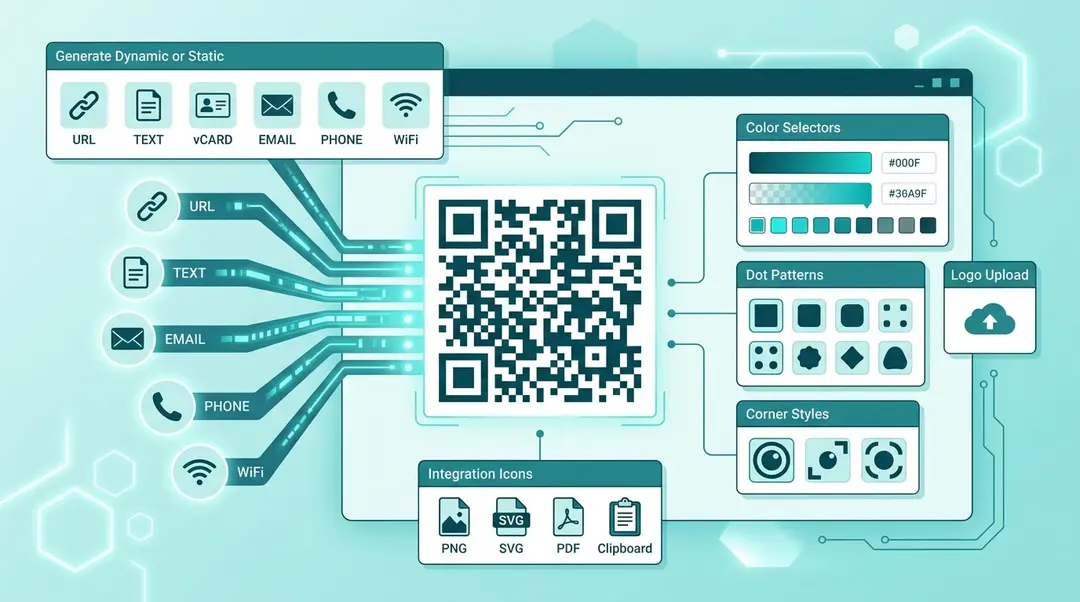
Create custom-branded QR codes right inside EuroMetrics. Support for URLs, text, contact cards, email, phone numbers, and WiFi credentials, all with full visual customization.
Creating a QR Code
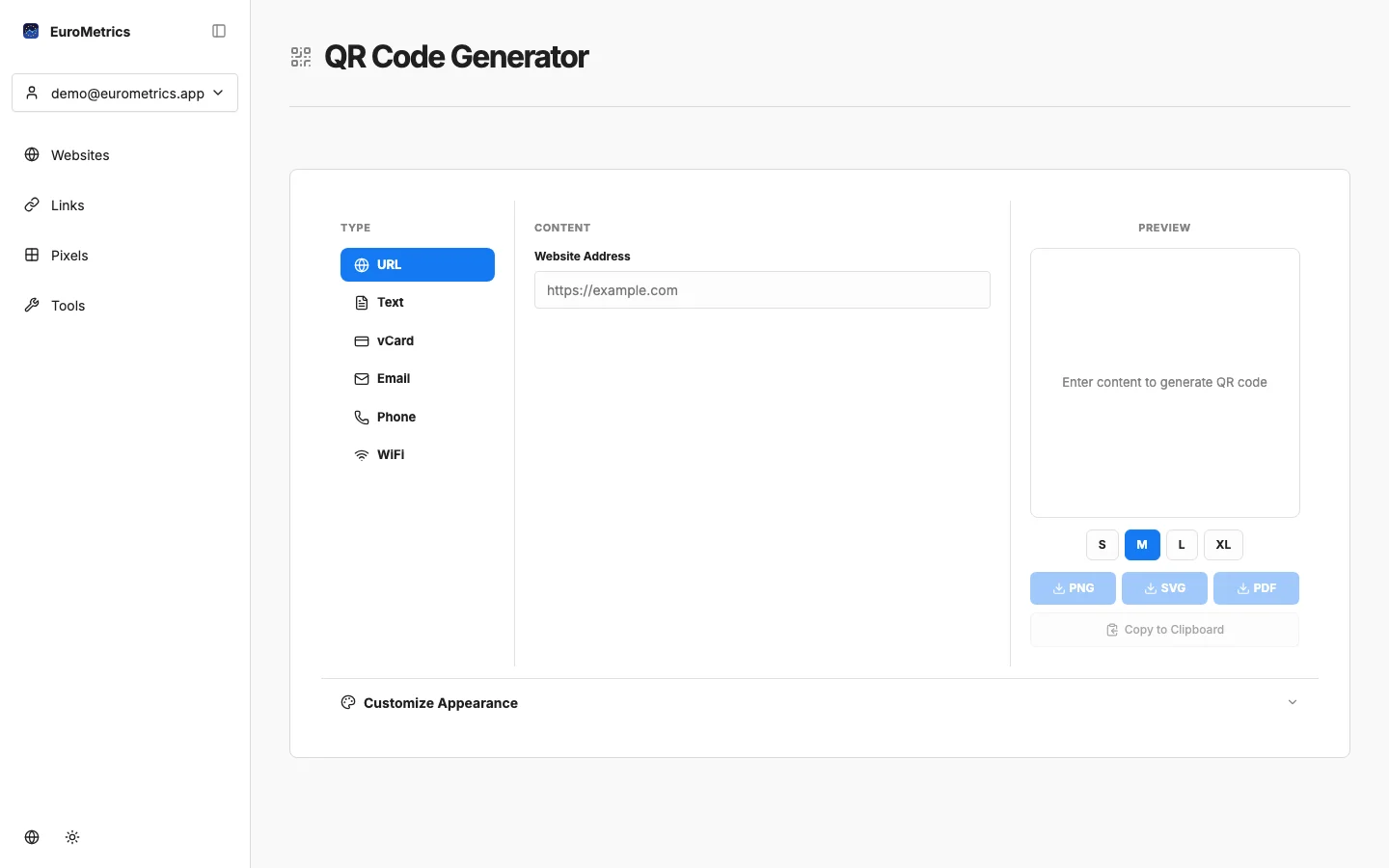
Go to Tools in the sidebar and open QR Code Generator.
Step 1: Choose the QR Type
Type | What It Encodes | Use Case |
|---|---|---|
URL | Website address | Marketing materials, business cards, product packaging |
Text | Plain text | Short messages, instructions |
vCard | Contact information | Business cards: scan to save contact |
Email address + subject | Quick email compose link | |
Phone | Phone number | Call-to-action on printed materials |
WiFi | Network credentials | Guest WiFi access in offices, hotels, cafes |
Step 2: Customize the Design
- Colors: Set foreground and background colors to match your brand
- Dot style: Choose from different dot patterns (square, rounded, dots, etc.)
- Corner style: Customize the corner squares
- Error correction: Higher levels make the QR code more resilient to damage (L, M, Q, H)
- Logo: Upload your company logo to place in the center of the QR code
Step 3: Export
Download your QR code in multiple formats:
- PNG: Best for web and digital use
- SVG: Scalable vector format, perfect for print
- PDF: Ready for professional printing
- Copy to clipboard: Paste directly into presentations or documents
Tips for QR Codes
- Always test before printing. Scan the QR code with your phone to verify it works.
- Keep sufficient contrast. Dark foreground on light background works best. Avoid low-contrast color combinations.
- Size matters. A QR code should be at least 2×2 cm (0.8×0.8 inches) for reliable scanning.
- Use higher error correction with logos. A logo covers part of the QR code, so increase error correction to H level to maintain scannability.
- Combine with UTM links. Use the Campaign URL Builder to create a UTM-tagged URL, then encode it in a QR code for full campaign tracking.
What’s Next?
Need help? Reach out to us at support@eurometrics.eu.