Why Import from Google Analytics?
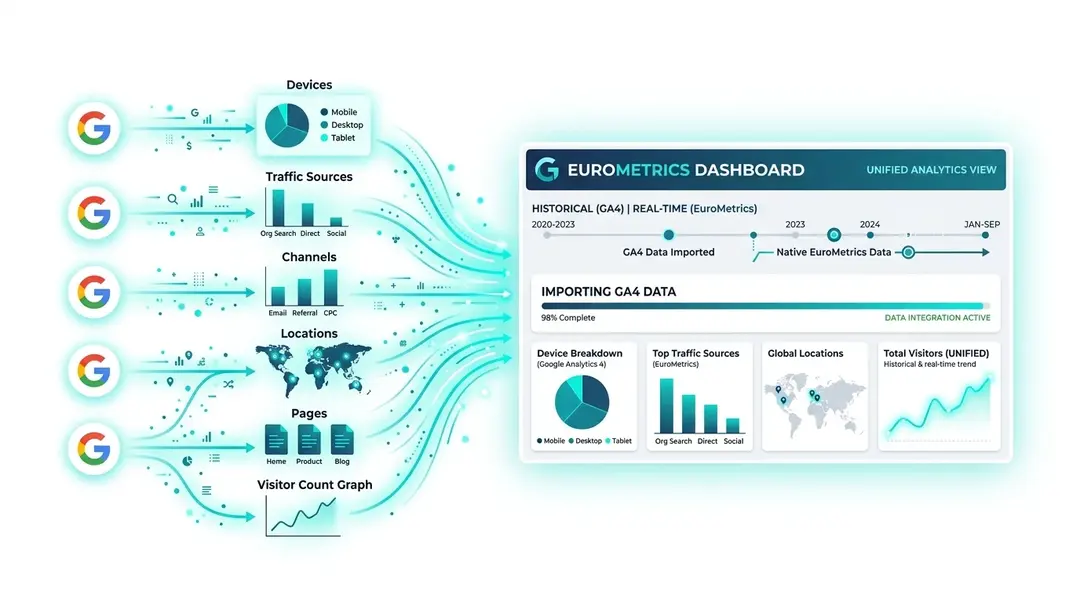
Switching to EuroMetrics doesn’t mean losing your historical data. Our GA4 import tool brings your Google Analytics 4 data into EuroMetrics, so you get a complete picture (past and present) in one dashboard.
What Gets Imported
The import brings in 9 types of historical data:
- Visitors: Daily unique visitor counts
- Traffic sources: Referrer data
- Channels: Traffic channel groupings
- Pages: Page view data by URL
- Entry pages: Landing page data
- Locations: Country and region data
- Devices: Device type breakdown
- Browsers: Browser usage data
- Operating systems: OS distribution
Step-by-Step Import Process
Navigate to your website’s Settings → Data Import.
Step 1: Connect Your Google Account
Click Connect Google Analytics and sign in with the Google account that owns your GA4 property.
Step 2: Select Your GA4 Property
After connecting, you’ll see a list of all GA4 properties in your Google account. Select the one that corresponds to this website.
Step 3: Choose Your Date Range
Select the start and end dates for the import. EuroMetrics automatically detects when your GA4 property started collecting data and suggests the full available range.
Tip: You can import any subset of your data. If you only need the last year, set the start date accordingly.
Step 4: Start the Import
Click Start Import. The import runs in the background, so you can close the page and come back later. The process:
- Fetches data day by day from the GA4 API
- Transforms it into EuroMetrics format
- Writes it to your analytics database
- Respects Google’s API rate limits (2 seconds between requests)
Step 5: Verify
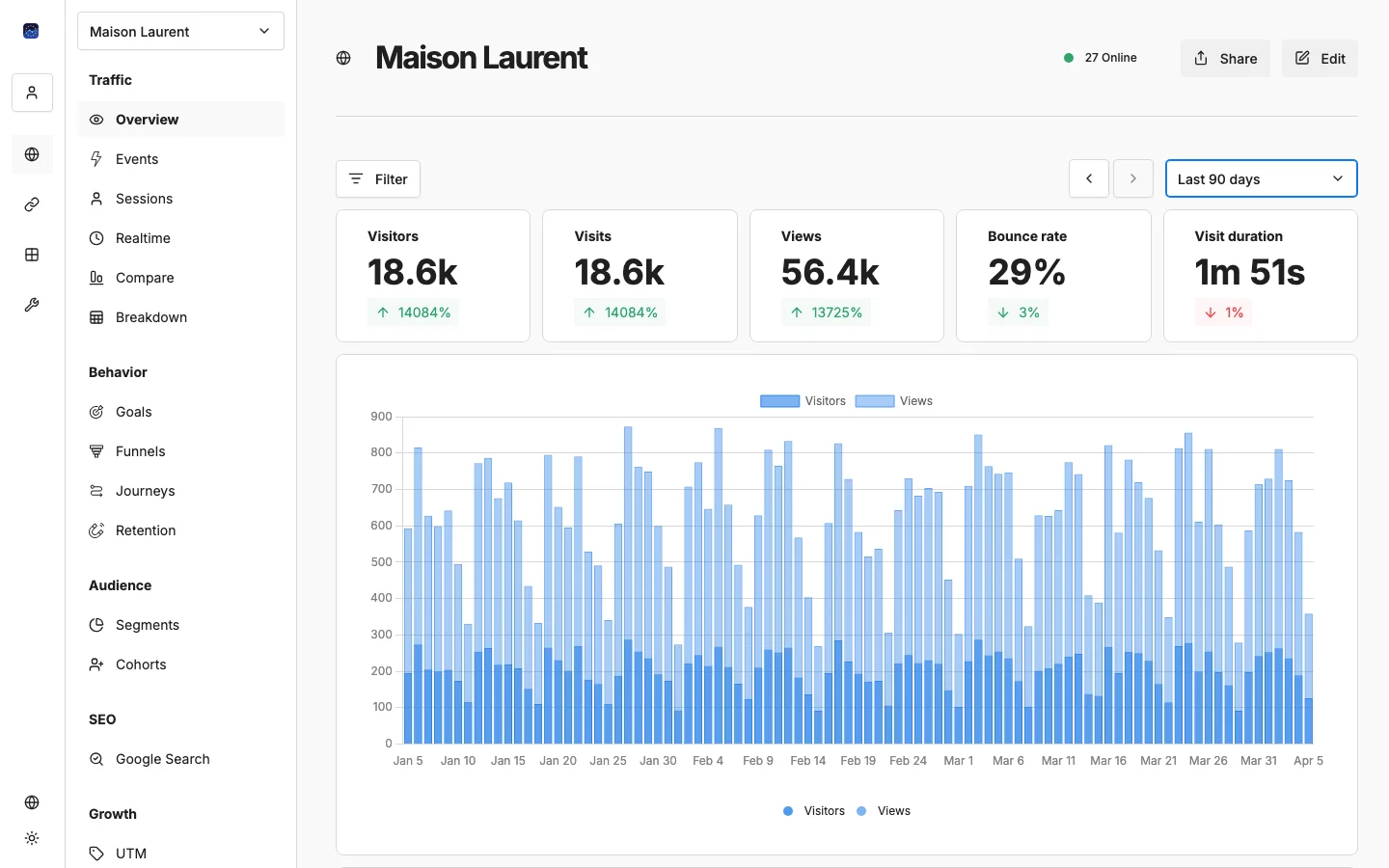
Once complete, your historical data appears in all relevant dashboard views. You’ll see a small indicator on charts showing where imported data ends and native EuroMetrics tracking begins.
Important Notes
- Import is one-way. Data flows from GA4 to EuroMetrics. Changes in GA4 after import won’t be reflected.
- No data duplication. If you run the import again for the same date range, it replaces (not duplicates) the existing data.
- Processing time varies. A year of data for a medium-traffic site typically takes 15–30 minutes.
- You can cancel. If you need to stop the import, click Cancel. Data already imported stays in place.
Requirements
- A Google account with access to the GA4 property
- The GA4 Data API and Analytics Admin API must be enabled in your Google Cloud project
- Read-only access to the property is sufficient
What’s Next?
Need help? Reach out to us at support@eurometrics.eu.