What Are Teams?
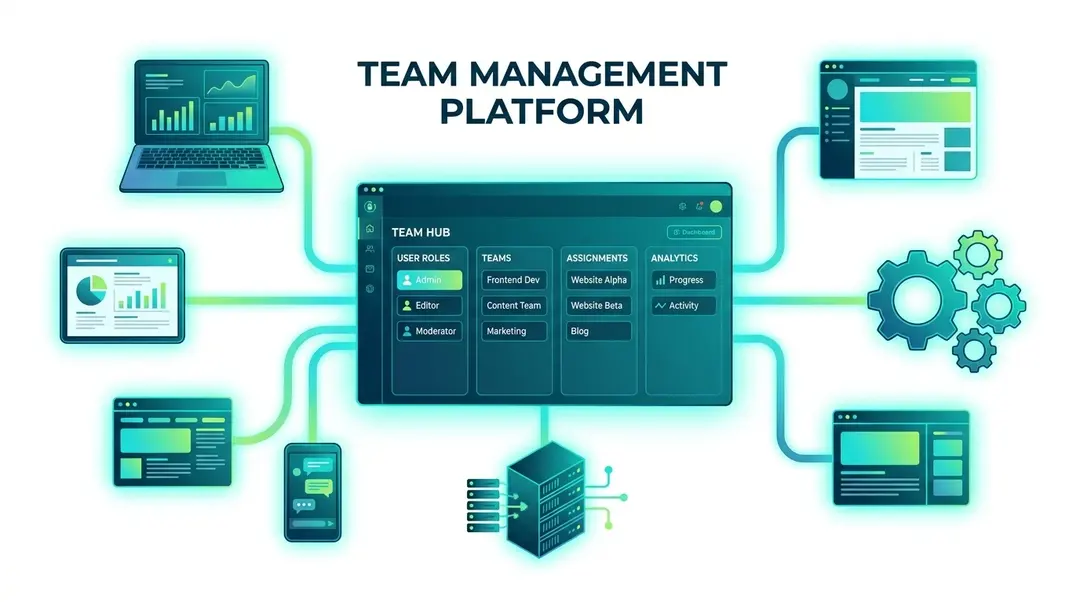
Teams let you organize websites and collaborate with colleagues. Instead of sharing your personal login, invite team members with specific roles — each person sees only what they need.
Creating a Team
Go to Settings → Teams and click Create Team.
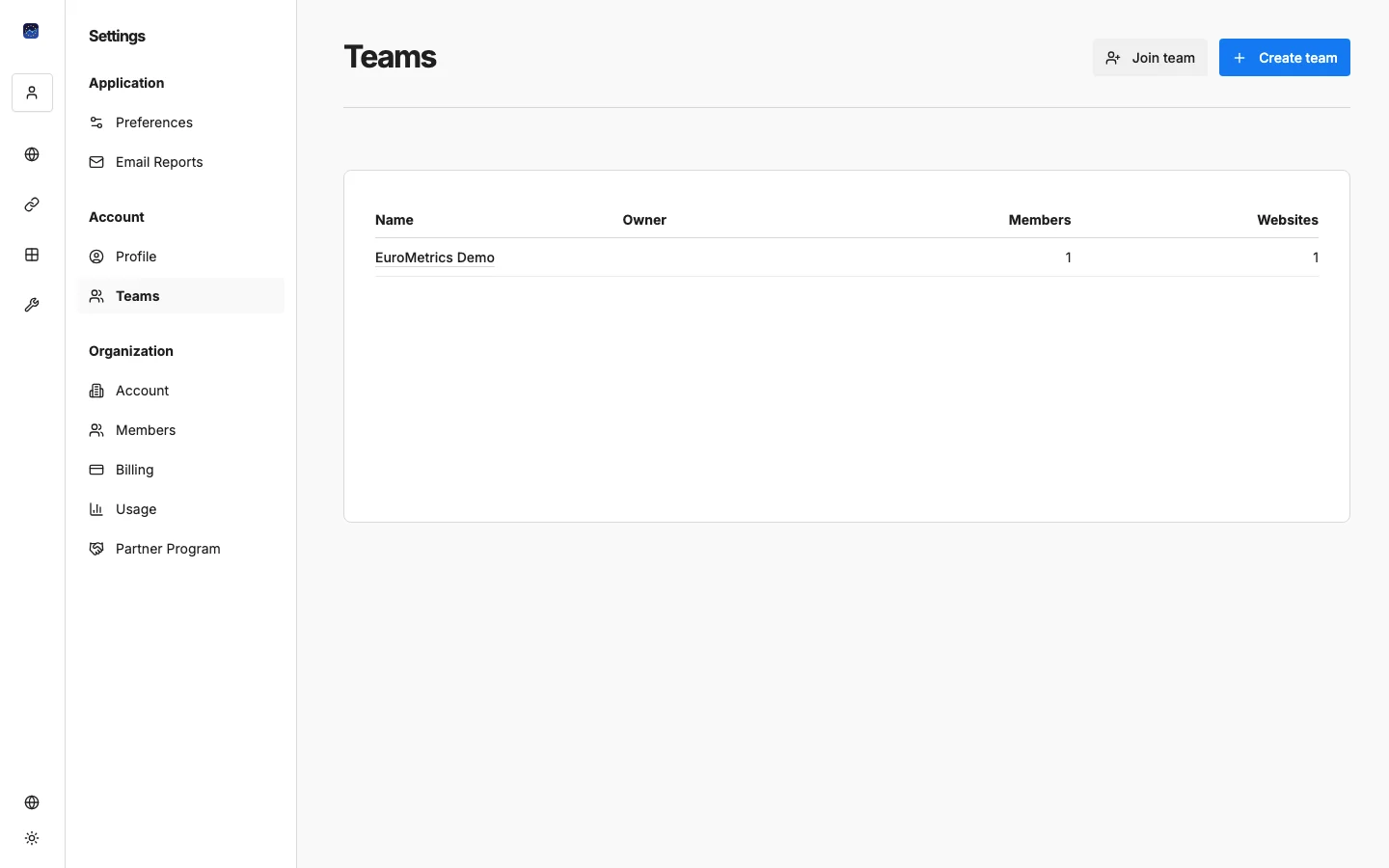
Give your team a name (e.g., “Marketing”, “Product”, or “Client: Acme Corp”) and save.
Inviting Members
Open your team and click Invite Member. Enter their email address and assign a role:
Roles
Role | Can View | Can Edit | Can Manage Team |
|---|---|---|---|
Admin | Everything | Everything | Yes — invite/remove members, change roles |
Editor | Everything | Websites, reports, settings | No |
Viewer | Analytics data only | Nothing | No |
Assigning Websites to Teams
When you add a website, you can assign it to a team. You can also transfer existing websites between personal and team ownership:
- Go to the website’s Settings
- Scroll to Transfer Website
- Select the destination (personal or a specific team)
All team members will then have access to the website based on their role.
Use Cases
- Agency with clients: Create a team per client. Add client contacts as viewers so they can check their own analytics.
- Company departments: Marketing team gets one set of websites, product team gets another.
- Freelancers: Invite your client as a viewer while you manage everything as admin.
What’s Next?
Need help? Reach out to us at support@eurometrics.eu.