What Are Traffic Filters?
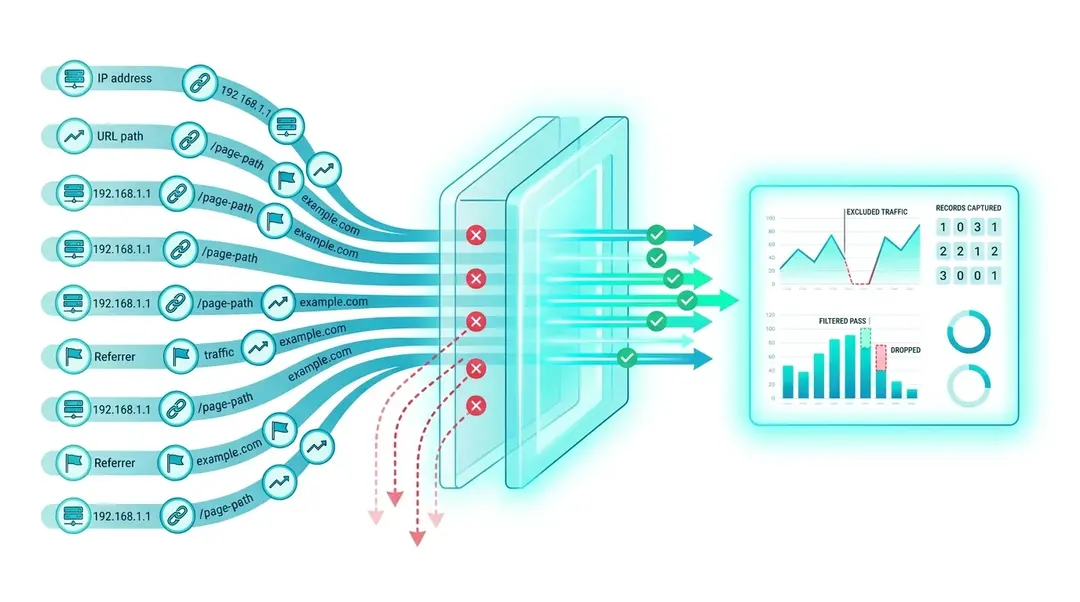
Traffic filters let you exclude (or include) specific traffic at the point of data collection. Unlike dashboard filters that hide data temporarily, traffic filters prevent matching events from ever being recorded. This keeps your analytics clean from the start.
Setting Up Filters
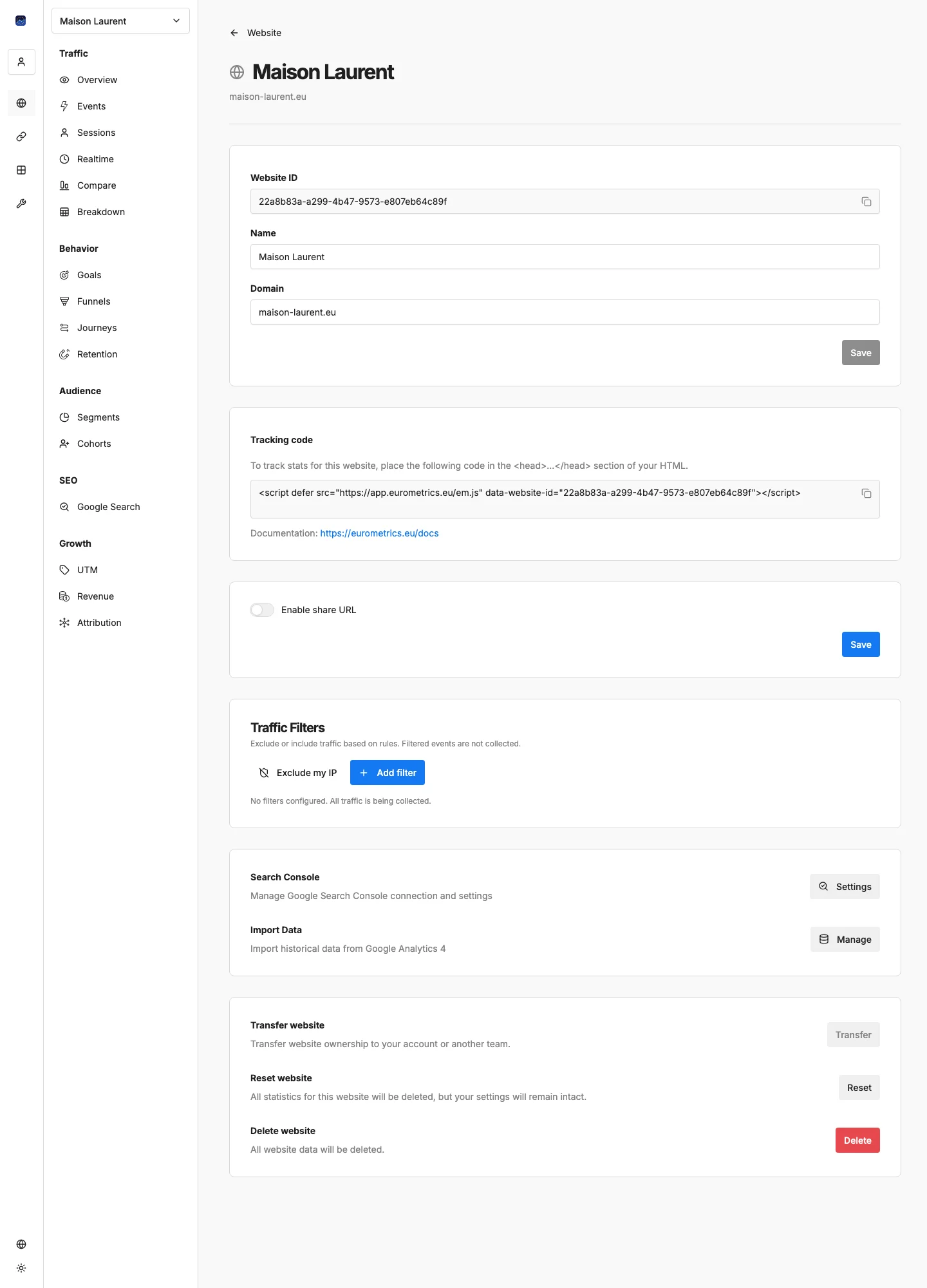
Navigate to your website’s Settings and scroll to the Traffic Filters section.
Quick Start: Exclude Your Own Visits
The most common use case is excluding your own traffic. Click the Exclude My IP button. EuroMetrics detects your current IP address and creates a filter automatically.
Creating Custom Filters
Click Add Filter to create a custom rule:
Field | Description |
|---|---|
Action | Exclude (drop matching traffic) or Include only (keep only matching traffic) |
Field | What to match: IP address, URL path, or Referrer domain |
Condition | How to match: equals, contains, starts with, or matches regex |
Value | The pattern to match against |
Filter Types and Examples
IP Address Filters
Use Case | Action | Condition | Value |
|---|---|---|---|
Exclude your office | Exclude | Equals |
|
Exclude IP range | Exclude | Starts with |
|
Only track certain IPs | Include only | Starts with |
|
URL Path Filters
Use Case | Action | Condition | Value |
|---|---|---|---|
Exclude staging pages | Exclude | Starts with |
|
Exclude admin area | Exclude | Starts with |
|
Only track blog | Include only | Starts with |
|
Referrer Domain Filters
Use Case | Action | Condition | Value |
|---|---|---|---|
Block referrer spam | Exclude | Contains |
|
Block bot referrers | Exclude | Matches regex |
|
How Filters Work
- Exclude filters: If traffic matches any exclude filter, it’s silently dropped (returns HTTP 200 but doesn’t save the event).
- Include filters: Traffic must match at least one include filter to be recorded. Everything else is dropped.
- Filters are cached for performance (5-minute cache, auto-invalidated on changes).
- Filtered events are gone. There’s no way to recover filtered data after the fact, because it was never recorded.
Managing Filters
- Enable/Disable: Toggle filters on and off without deleting them
- Delete: Permanently remove a filter
What’s Next?
Need help? Reach out to us at support@eurometrics.eu.